
So far in AI-417, we’ve explored Statistical Data: numbers, tables, and Orange Data Mining Tool. Now we turn to a completely different kind of data: images and videos. Welcome to Unit 5: Computer Vision, one of the three domains of Artificial Intelligence alongside Statistical Data and Natural Language Processing. This article is part 1 of unit 5 where we will cover 5.1 Introduction to Computer Vision & CV Tasks.
A Quick Overview of Computer Vision
Computer Vision (CV) is the process of extracting information from images, text, and videos; a system that can process, analyze, and make sense of visual data the same way humans do.
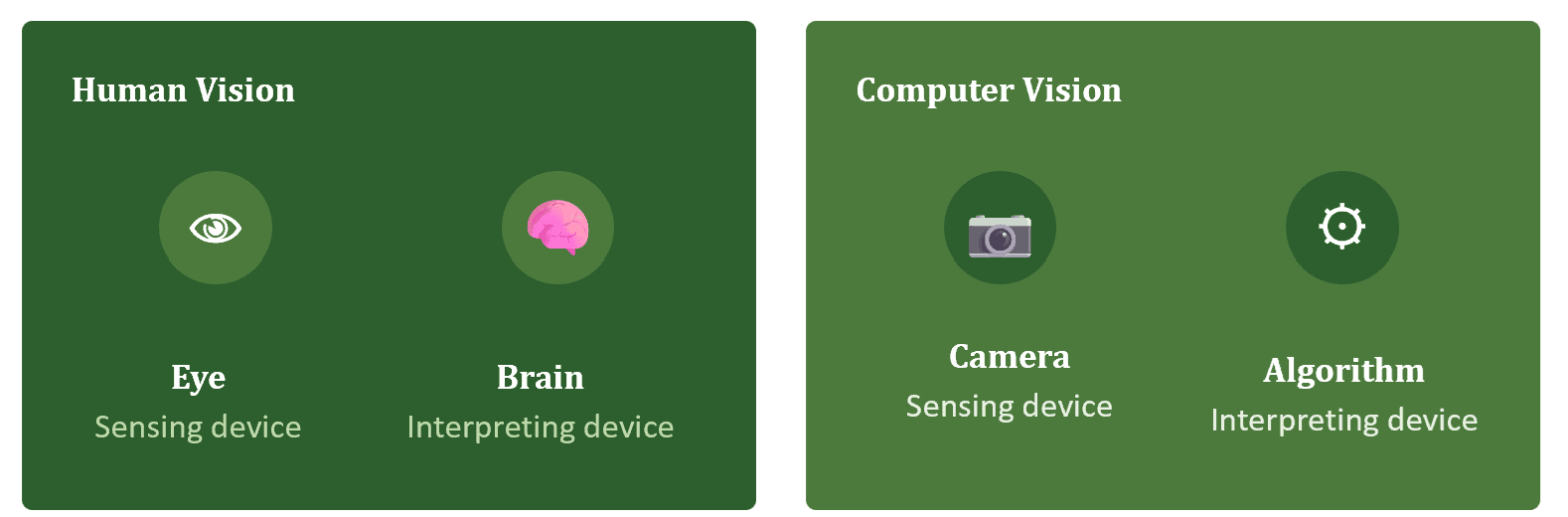
Think about how human vision actually works: your ‘eye’ acts as the sensing device, and your ‘brain’ acts as the interpreting device. When you look at an elephant, your eyes sense the light, and your brain interprets it as “elephant.” Computer Vision tries to replicate exactly this two-step process: a ‘sensing device’ (a camera) captures the image, and an ‘interpreting device’ (an algorithm) makes sense of it.
Artificial Intelligence and Computer Vision
Computer Vision is a field of Artificial Intelligence. If AI enables computers to think, then Computer Vision enables AI to see, observe, and make sense of visual data such as images and videos.
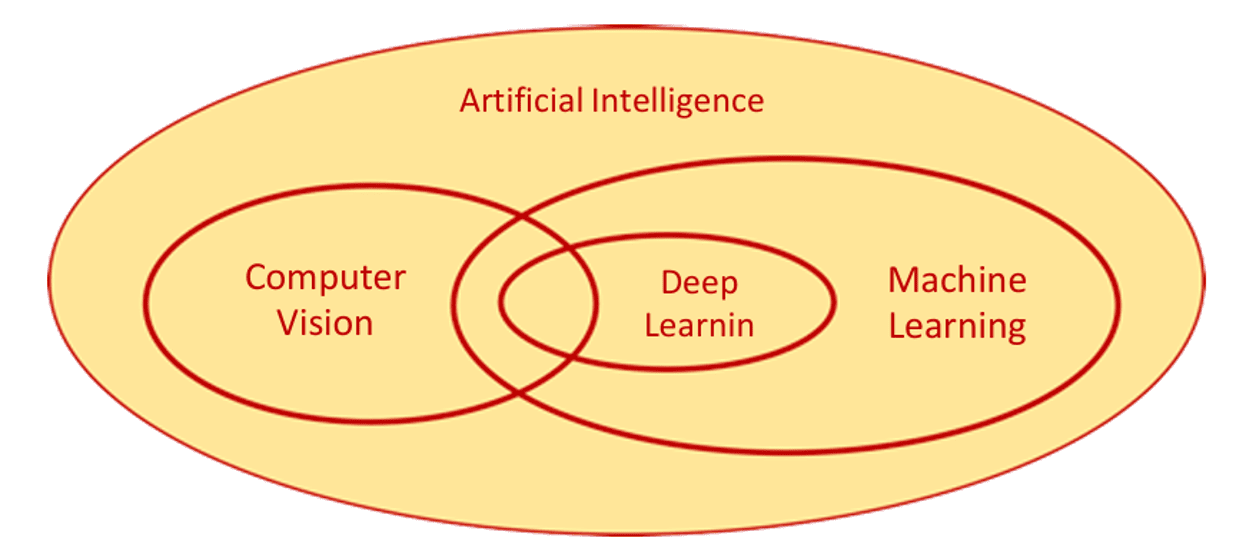
Recall the AI Project Cycle’s three domains of AI, based on the type of data used:
- Statistical Data: numbers, tables, structured datasets
- Computer Vision: images, videos, thermal/infrared sensor data
- Natural Language Processing: text and speech
CV, in particular, depicts a machine’s capability to acquire and analyze visual information and then predict decisions about it. The entire process involves image acquiring, screening, analyzing, identifying, and extracting information. The main objective of Computer Vision is to teach machines to collect meaningful information from pixels.
Computer Vision vs. Image Processing
These two terms get mixed up constantly, but there’s a clean, exam-ready distinction:
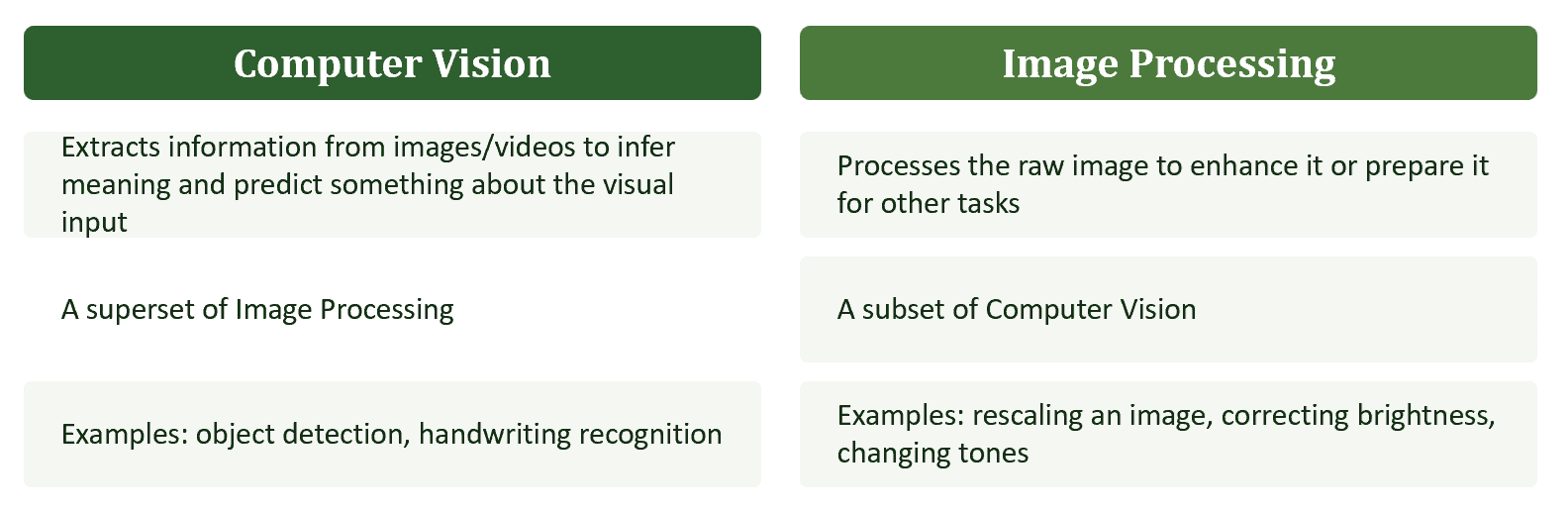
In short: Image Processing changes how an image looks. Computer Vision figures out what an image means.
Applications of Computer Vision
The concept of Computer Vision was first introduced in the 1970s, but it’s only in recent years, with major advances in Deep Learning CV has landed on the priority list of nearly every industry. Here are some of its biggest real-world applications:
- Facial Recognition: It powers smart-home and smart-city security, guest recognition, visitor logs, and school attendance systems based on recognizing students’ faces.
- Face Filters: Apps like Instagram and Snapchat use CV to identify your facial dynamics through the camera and apply the filter you’ve selected in real time.
- Google’s Search by Image: Compares features of your input image against a massive database of images to return visually similar search results.
- Computer Vision in Retail: It tracks customer movement through stores, analyses navigational routes and walking patterns, and even estimates store inventory or suggests better shelf placement from security-camera footage.
- Self-Driving Cars: The fundamental technology behind autonomous vehicles: identifying objects, planning navigational routes, and monitoring the environment, all at once.
- Medical Imaging: It helps physicians create and interpret scans, converting 2D scan images into interactive 3D models for a more detailed understanding of a patient’s condition.
- Google Translate App: If you point your camera at foreign-language text, and CV (via optical character recognition) plus augmented reality overlays an instant translation.

Computer Vision Tasks
Every CV application above is powered by a small set of underlying tasks. The specific jobs a CV algorithm performs on an input image to extract information that can be used directly for prediction, or as a base for further analysis.
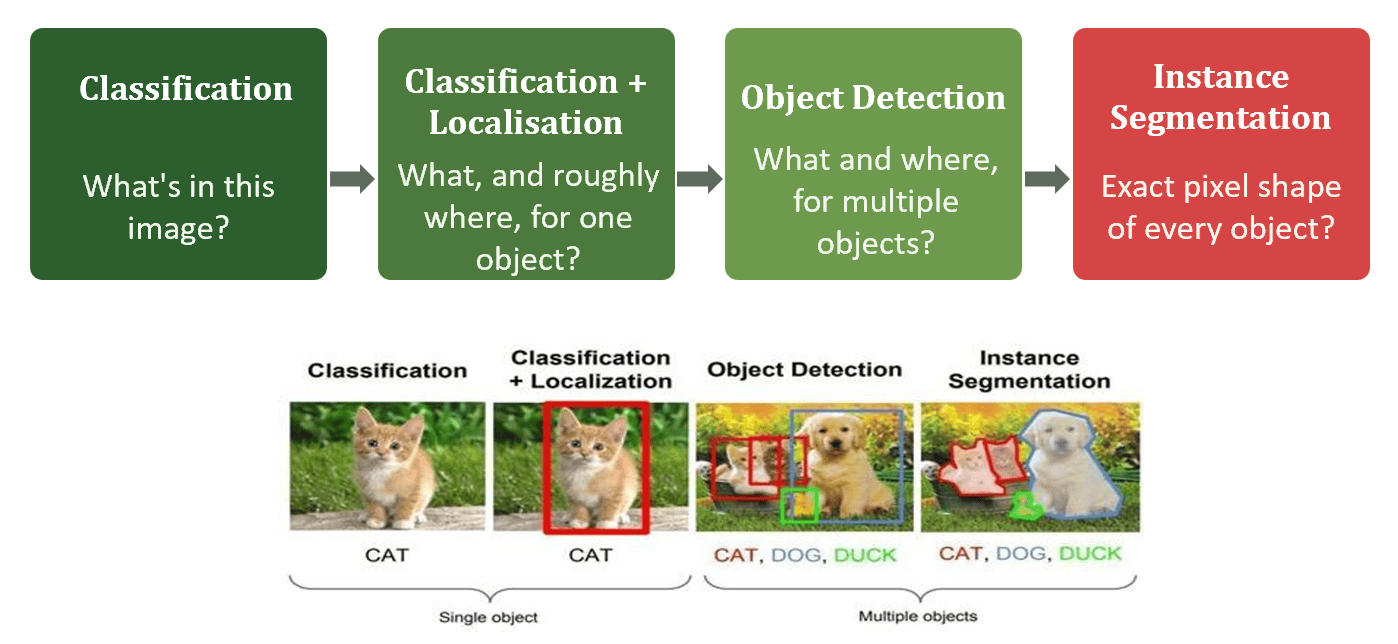
1. Classification
The image classification problem is the task of assigning an input image one label from a fixed set of categories. Despite its simplicity, this is one of the core problems in CV, with a huge range of practical applications, think “is this a cat or a dog?”
2. Classification + Localisation
This task combines two things at once: identifying what object is present in the image, and identifying where at what location, that object is present. It’s used only for a single object in the image (for example, drawing one bounding box around the one cat in the photo, labeled “cat”).
3. Object Detection
Object detection is the process of finding instances of real-world objects such as faces, bicycles, and buildings in images or videos. It typically uses extracted features and learning algorithms to recognize instances of an object category, and unlike Classification + Localisation, it can detect and label multiple objects in a single image. It’s commonly used in applications like image retrieval and automated vehicle parking systems.
4. Instance Segmentation
Instance Segmentation goes a level deeper: it detects instances of objects, gives each one a category, and then gives each individual pixel a label based on that category. A segmentation algorithm takes an image as input and outputs a collection of regions, or segments, essentially tracing the exact outline of every object, pixel by pixel.
Basics of Images
Before we can go further into Computer Vision, we need to understand what an image actually is to a computer.
Pixels
The word “pixel” means picture element. Every digital photograph is made up of pixels. The smallest unit of information that makes up a picture, usually arranged in a 2-dimensional grid. If you zoom into any digital photo far enough, you’ll see it’s really just a grid of tiny colored squares. The more pixels an image has, the more closely it resembles the original scene.
Resolution
The number of pixels in an image is called its resolution. It’s commonly expressed in two ways:
- Width × Height: For example, a monitor resolution of 1280×1024 means 1280 pixels across and 1024 pixels top to bottom.
- Total pixel count: For example, a “5 megapixel” camera, where a megapixel is a million pixels. Our 1280×1024 example works out to 1280 × 1024 = 1,310,720 pixels, or about 1.31 megapixels.
Pixel Value
Each pixel has a pixel value that describes how bright it is and/or what color it should be. The most common format is the byte image, where this value is stored as an 8-bit integer, giving a range of ‘0 to 255’. Why 255? Because computer data is binary, each of the 8 bits can be either 0 or 1, giving 2⁸ = 256 possible values, numbered 0 through 255. Conventionally, 0 means no color (black), and 255 means full color (white).
Grayscale Images
Grayscale images have a range of shades of gray, with no apparent color. The darkest shade is black (a pixel value of 0), and the lightest is white (a pixel value of 255), everything in between is an intermediate shade of gray. A grayscale image has just one plane of pixels, each of size 1 byte, and its size is simply Height × Width.
RGB Images
The colored images we see every day are made up of three primary colors: Red, Green, and Blue. Every color you can see is some combination of different intensities of these three.
Computers store an RGB image as three separate channels, an R channel, a G channel, and a B channel, each with its own grid of pixel values from 0 to 255. When the three channels are combined, they produce the full-color image. So every pixel in an RGB image actually carries three values, not one, and together those three values determine its exact color.
Test Yourself
- What is Computer Vision? How is it different from Image Processing?
- How is resolution typically expressed?
- Explain 4 computer Vision ?
- Give few applications of Computer Vision ?
- In an RGB image, what does a pixel with an intensity value of 0 represent?
- What color do you get when R = G = B = 255? What about R = G = B = 0? What about R = 0, G = 255, B = 0?
Stay Tuned!!
Stay tuned for next part of this chapter, where we deep dive in to Smart Sorter activity using Teachable Machine.
Click below for the YouTube video for Part 1 of Unit 5:
For any queries and clarification, kindly email us at datasciencehorizon@gmail.com
Keep learning and keep implementing!!

